State and Federal goverments spend $40 million a year for LiDAR mapping in the U.S. and it's free to you across much of the nation. Discover how to use it below.
Free Technology To See... What We Can't
LiDAR stands for Light Detection and Ranging. It’s a remote sensing technology that can map detailed topography of the ground by emitting rapid laser pulses from an aircraft and timing how long it takes for the reflected light to return to the sensor.
And what’s so cool about LiDAR mapping is that in addition to its ability to detect slight variations and detail in topography, it can visually “strip away” all the vegetative cover so we can see what’s often hidden to the naked eye on the ground.
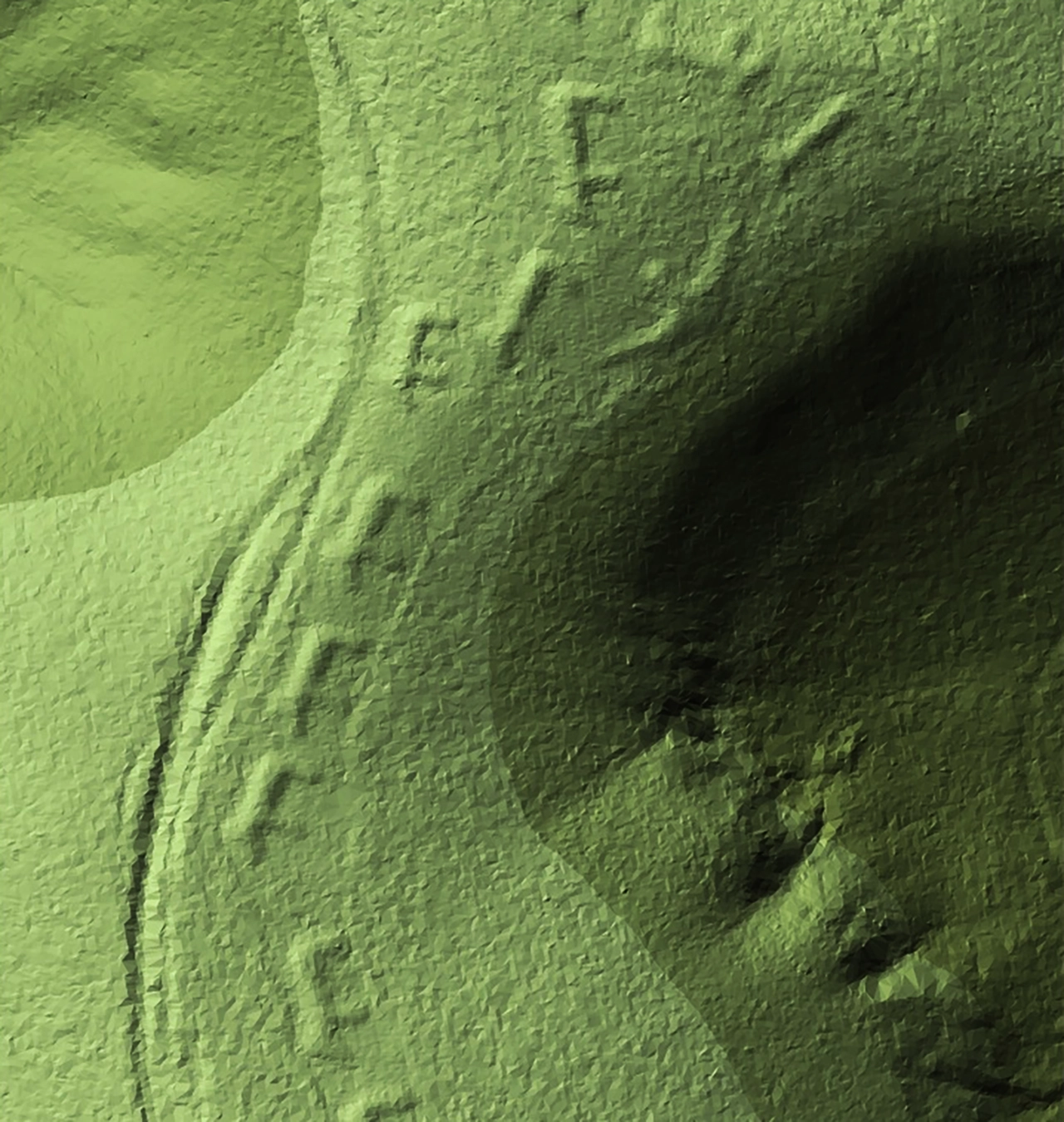
LiDAR has been used to make remarkable archeological discoveries in recent years from hidden Mayan cities (The Lost City Of The Monkey God) to Native American effigy mounds such as the “walking bears” to the left that were hidden beneath the forest canopy in Iowa.
Although we’re not looking for lost cities in the Amazon, pure detecting sites here in North America could well be lost ghost towns or settlements where only faint outlines of the ruin or cellar outlines remain hidden to our naked eyes by vegetation. Perhaps the most exciting thing about LiDAR is that it’s absolutely free at your fingertips.
All you need is a computer and some pointers on how to access and use LiDAR to see what your eyes can’t. Plus, we’ll even offer some tips on how you can visually enhance the LiDAR images to possibly see what others may have missed.
Your Pathway to LiDAR - the National Map 3-D Viewer
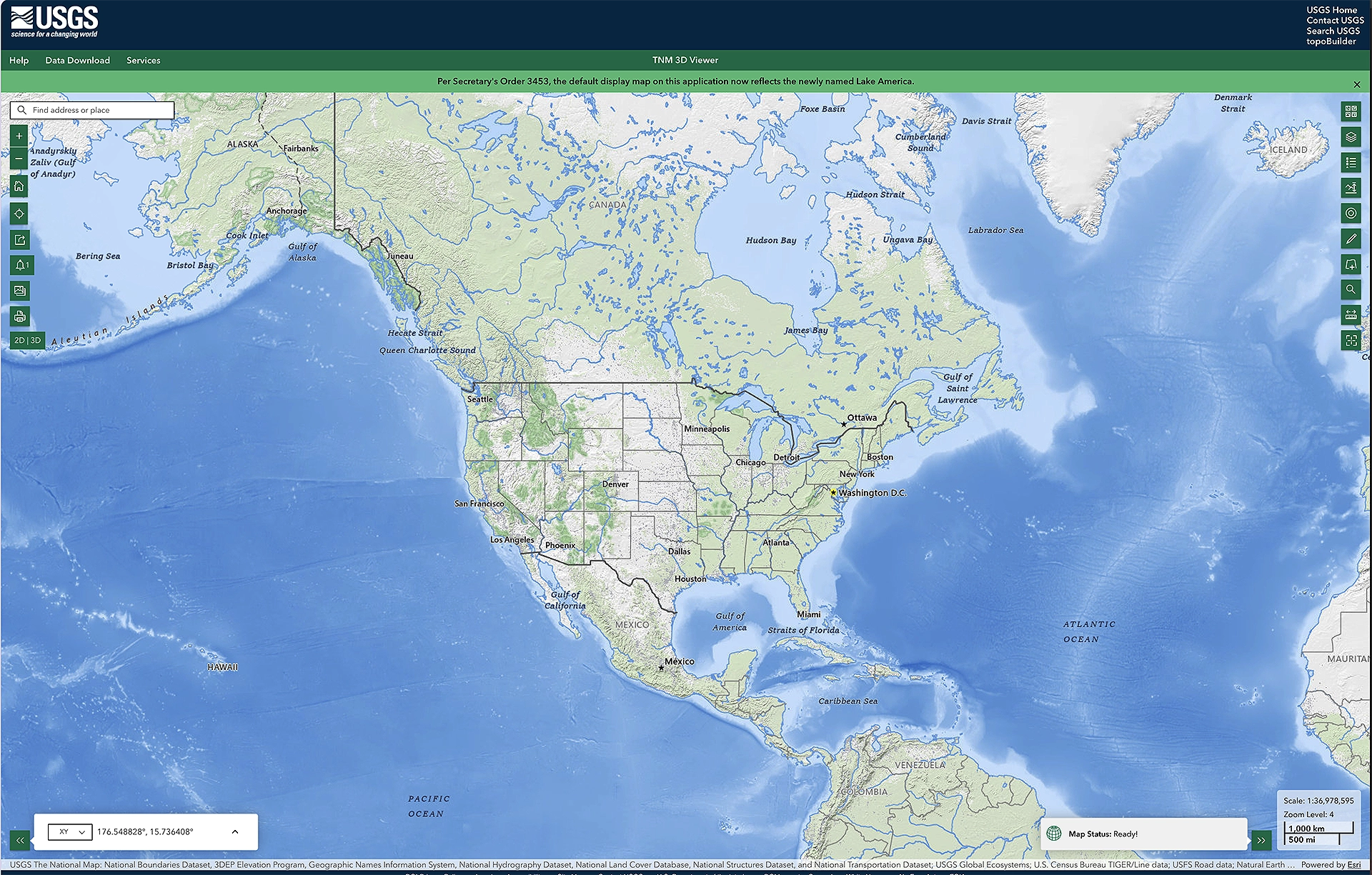
Despite the incredible cost and treasure-hunting potential of LiDAR, it’s absolutely free… if you have a computer, of even a smartphone to use with it. To access it, simply follow this link to the National Map 3-D Viewer homepage (similar to the image on the left).
Although it’s simple to access the USGS Mapping webiste, tapping into and understand how to best use the available LiDAR takes a bit of a learning curve. But don’t worry, the Internet is packed with lessons and videos on how to use LiDAR.
In fact, this tutorial video from the Ozark Outsider is an exceptionally detailed, yet easy to follow lesson on using LiDAR and the other map layers in the National Map 3-D Viewer.
So before proceeding with our lesson below, please take some time with your computer in becoming familiar with the 3-D Viewer and accessing LiDAR and the different map layers.
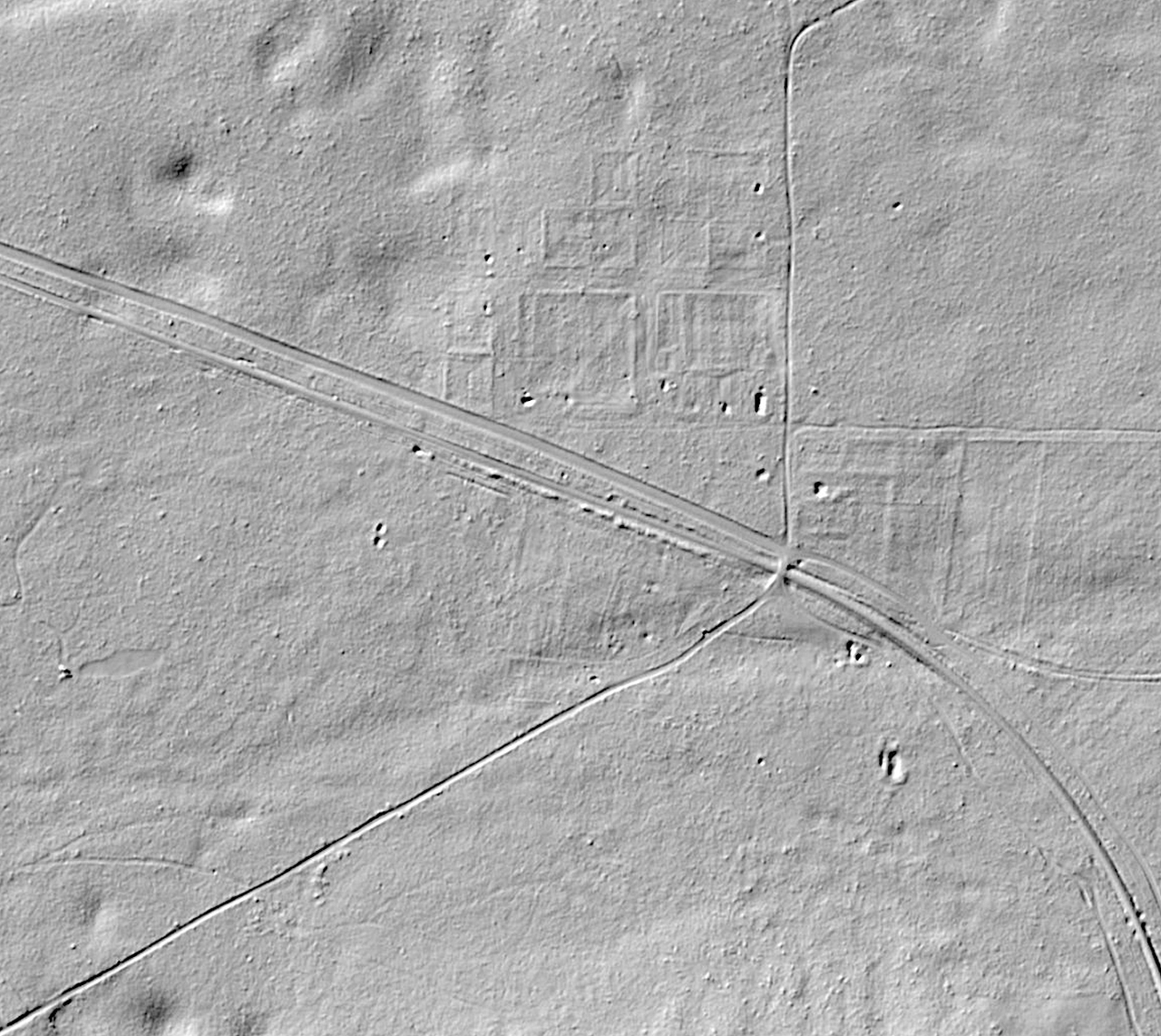
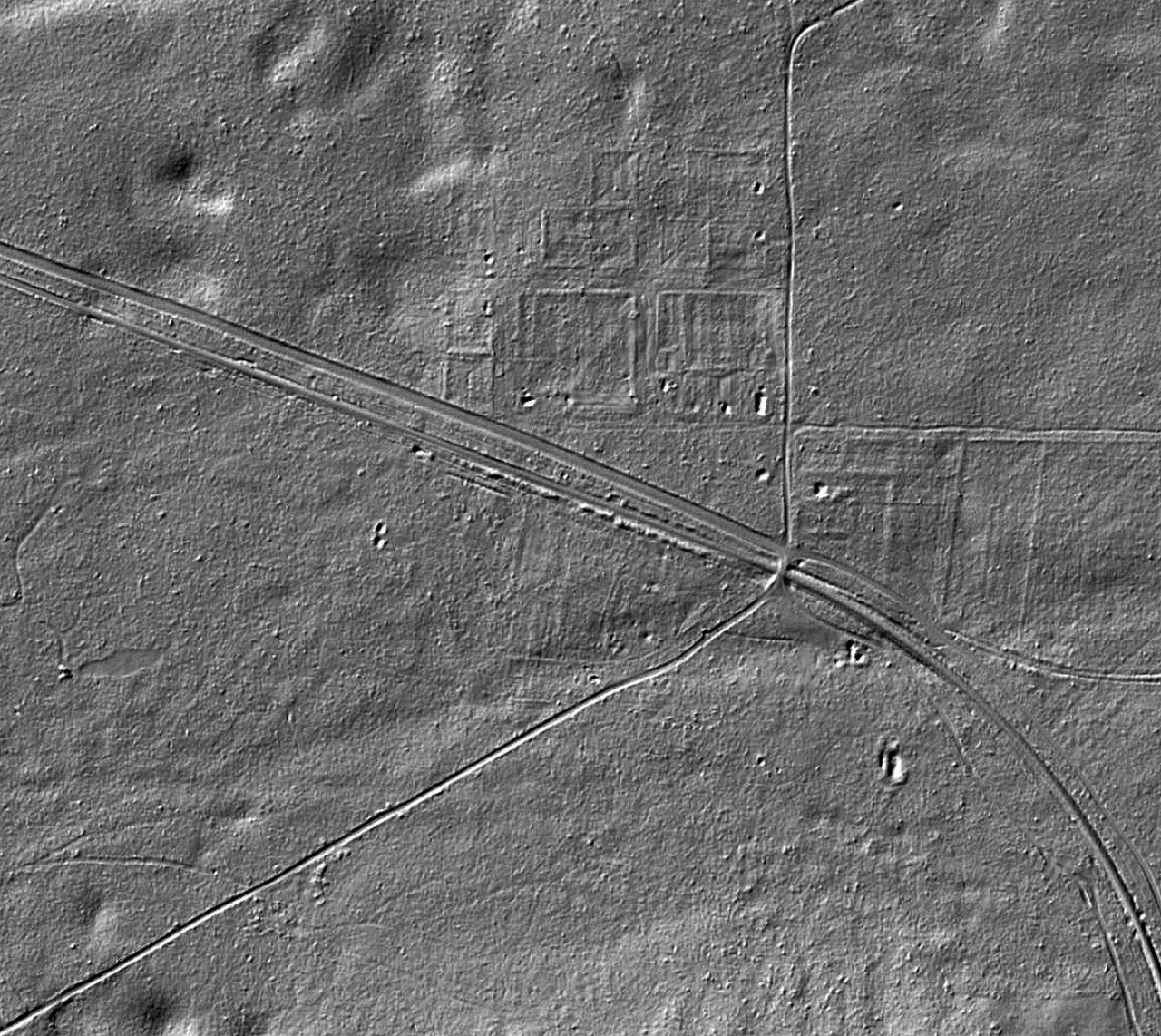
Here's the Level 18 LiDAR image of our real ghost town example. Looking "through" the forest canopy, we can see the outlines of the town, foundations and cellars of the past buildings.
Using LiDAR to "Look" At Your Sites
Once you’ve become familiar with LiDAR and using layers in the National Map 3-D Viewer, let’s navigate to the geographic site of our example actual ghost town, zoom in, and turn on the 3DEP Elevation – Hillside Stretched layer (near the bottom in the layers panel) to see what’s hidden beneath the forest canopy.
The LiDAR image to the left is our actual ghost town zoomed in to Level 18, Scale 1:2,257. (that offers the best combination of detail and sharpness. The more detailed your monitor, the more fine details you’ll see). When you zoom into a site, also make sure that you’re flat with a horizontal view so it will best match with the overlay of your historic map, and other maps so you can pinpoint and navigate right to the sites.
At this point, your LiDAR image may present you with all the information you need to find your site and begin detecting. With this standard 3DEP Elevation – Hillside Stretched layer we can just make out the faint outlines of the building sites and town location, along with quite a few cellars.
But before we show you how to use other map layers and your smartphone to walk right to one of the cellars, let’s expose even more details of the area by “enhancing” our LiDAR image.
By adjusting the contrast, brightness, and a sharpen filter, the details of the ghost town reveal more clues on where to detect... such as the boarding area of the trail depot!
Enhancing Your LiDAR Image
Admittedly, by itself, LiDAR is an amazing tool for pinpointing pristine detecting sites. But as you’ll see, with a few simple adjustments using an image or photo app, we can enhance the details a bit more by;
First, make a screen image capture (commonly called a screenshot) and save as a PNG file (Portable Network Graphic format).
Next, using the PNG screenshot, increase the “contrast” to further “visually stretch” the relief of the ground details. Depending on your image software, you might try full contrast adjustment a couple of times.
Then adjust the brightness to visually get the best balance of light to dark. Note how the image to the left is markedly darker than the original LiDAR screenshot.
If your image software has a “sharpen” filter or feature, apply that and adjust it to further define ground features. Careful not to over-sharpen the image as it may create JPEG artifacts that can distort details. In Photoshop, about 20% sharpen provides a good balance.
Once you’ve enhanced the LiDAR to your liking, save it again as a PNG “enhanced” version.
Just a few more steps below and we’ll be able to “step” right into one of the cellars on the ground with our detector.
Here's the Level 18 LiDAR image of our real ghost town example. Looking "through" the forest canopy, we can see the outlines of the town, foundations and cellars of the past buildings.
Layer LiDAR with Google Earth Pro
To be able to walk directly to the cellars and other features on our enhanced LiDAR image, we can use our image-photo software to “layer” LiDAR on top of a Google Earth Pro screenshot of the site. Here are the steps:
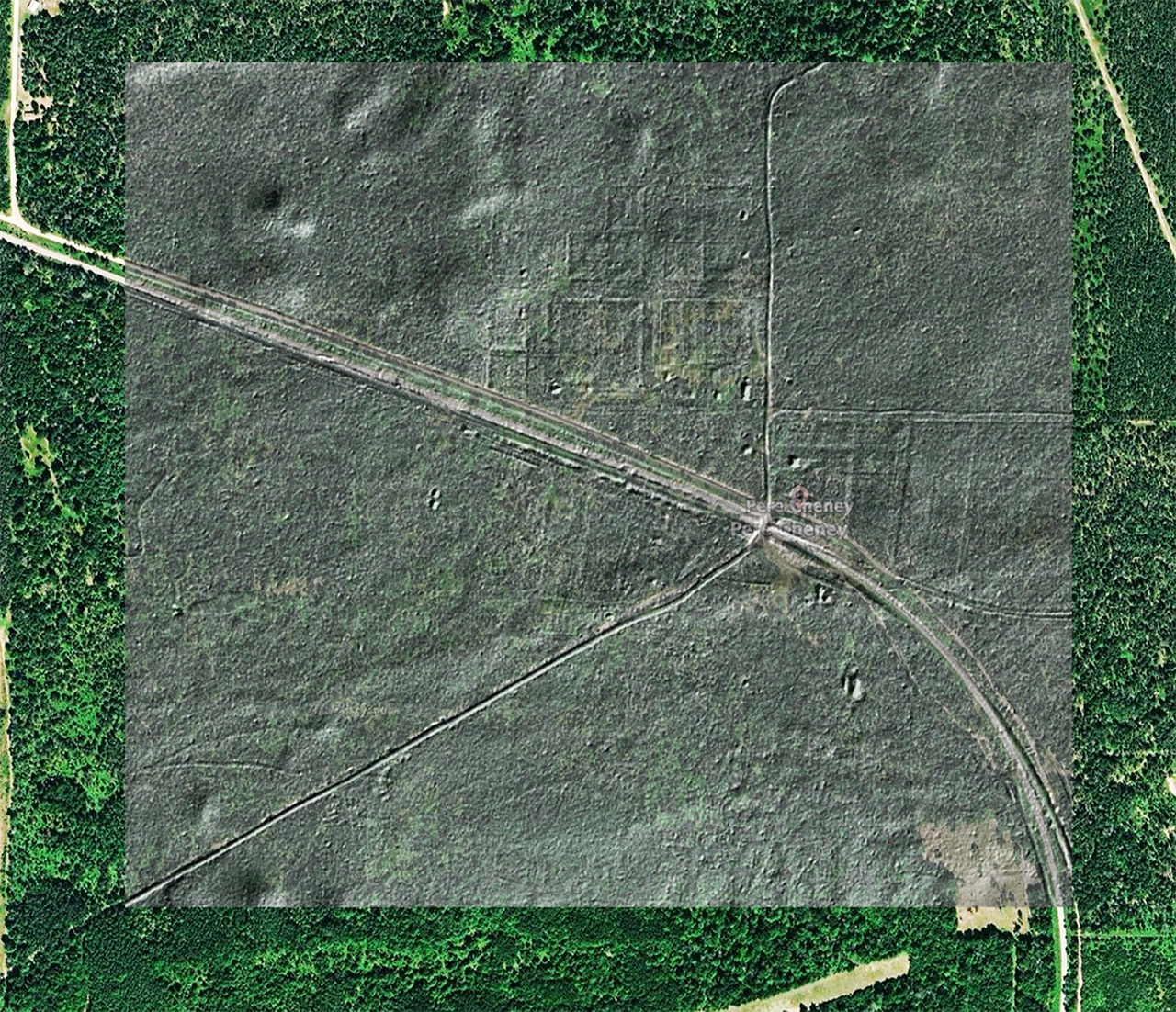
Open both screenshots of your LiDAR image and Google Earth Pro image of the sites. Layer the LiDAR on top of the Google Earth map.
Chances are they won’t be an exact scale match. So, make the LiDAR layer about 70% transparent so you can see through LiDAR to the Google Earth image (image to left).
Now “scale” (size) adjust and move the LiDAR until it perfectly overlays with features such as roads, railways, and trails on the Google Earth map.
Then turn the LiDAR layer back to 100% opacity.
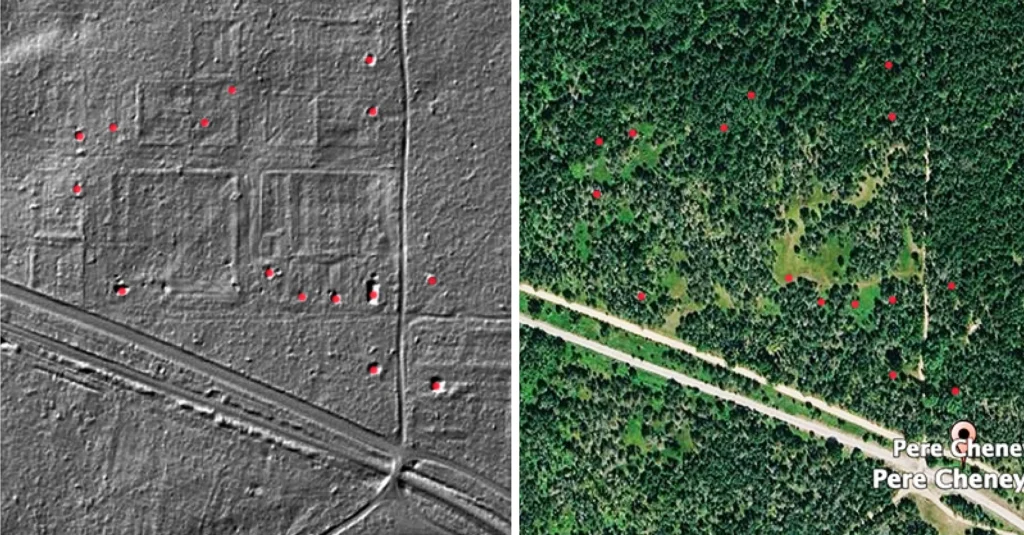
Next, create a new transparent layer and mark the cellars or other points of interest with red dots (or yellow if you’re a bit red-green color challenged).
Then turn off the LiDAR layer so you only see the red dots over the Google Earth map.
The side-by-side image below shows the results of a zoomed-in section of the map.
The left side is the LiDAR layer showing the red dots layer over 15 cellar locations. The right image is Google Earth Pro satellite view with the red dots layer. Zooming in with the map app on a smartphone and comparing the precise locations of the red dots, we can drop “pins” on the 15 cellar sites.
Using the pinned smartphone map in hand, we can now navigate to walk right to the cellar locations hidden in the forest and start detecting… assuming of course that we researched and secured permission!