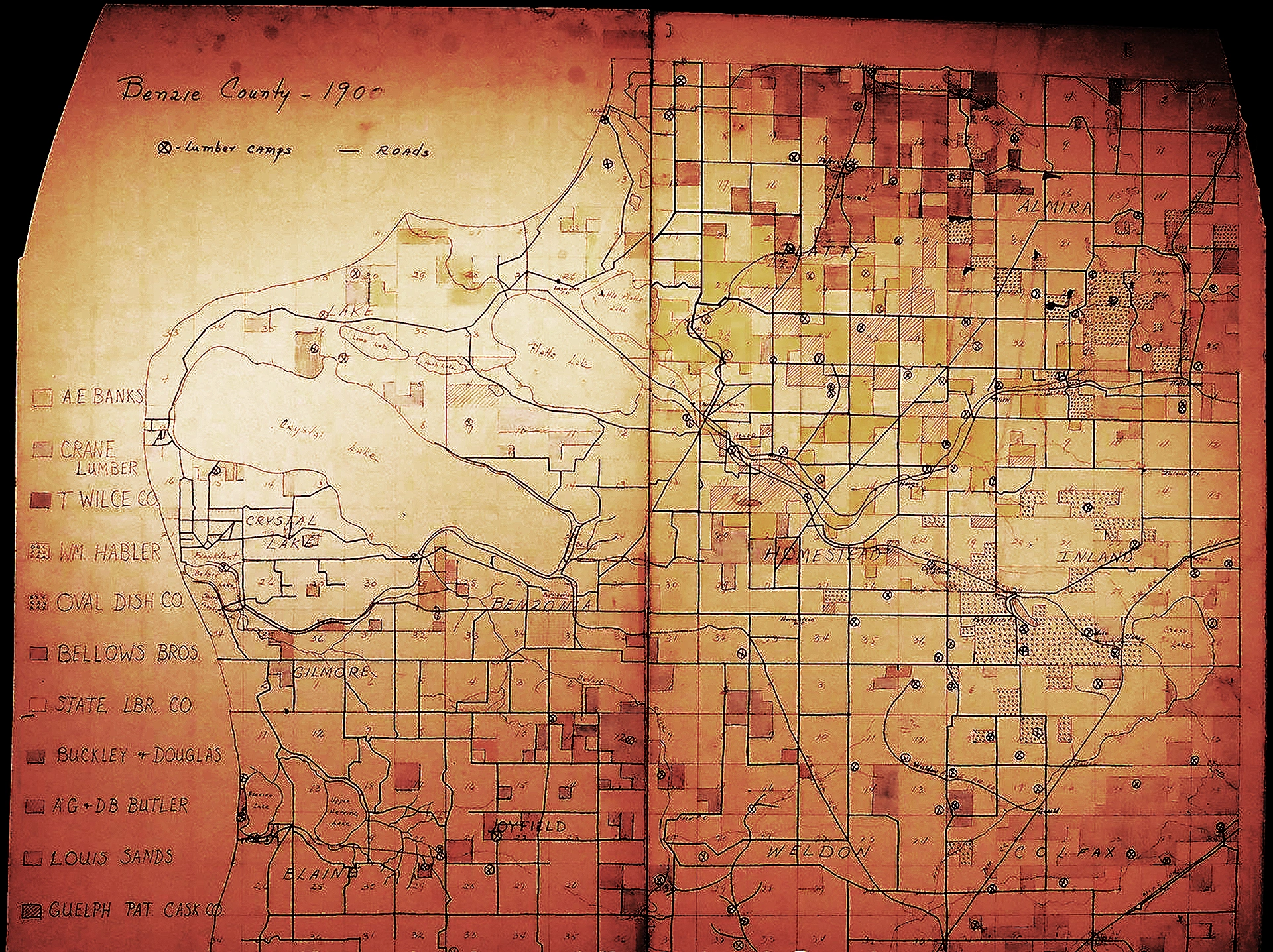
Imagine that you discovered a 1900 hand-drawn map showing dozens of logging camps and rail junctions. At this scale, it's darned difficult to pinpoint any of these sites and walk directly to them. Nonetheless, this sections on this page will decode exactly how to navigate your pathways to pure detecting.
Creating Your Treasure Maps
After all your research and capturing information, you now get to dive into the excitement of creating your treasure maps. Really, detailed mapping your sites can be one of the most exciting parts of planning exactly where to detect.
To be successful at detecting you need your detector and all your tools, right! Same goes for successful mapping. And here are the “tools” below (with links) that will help you in mapping and pinpointing your detecting sites:
ArcGIS Parcel viewer (online search for your county of interest)
Image Computer Software (online search for… “image software with layers and scale adjust”)
Admittedly, depending on the maps you’ve acquired and your prospect sites, you may be able to locate some of them easily on the ground. But more often than not, you’re looking to pinpoint historic and abandoned sites in remote locations that we’re are difficult to find for most people. And that’s where the time you spend in detailed mapping can help you walk right up to sites hidden in the middle of the desert or a forest, miles from where you parked. Below are the map tools and steps to pinpointing your sites.
Let's Start With Old Maps
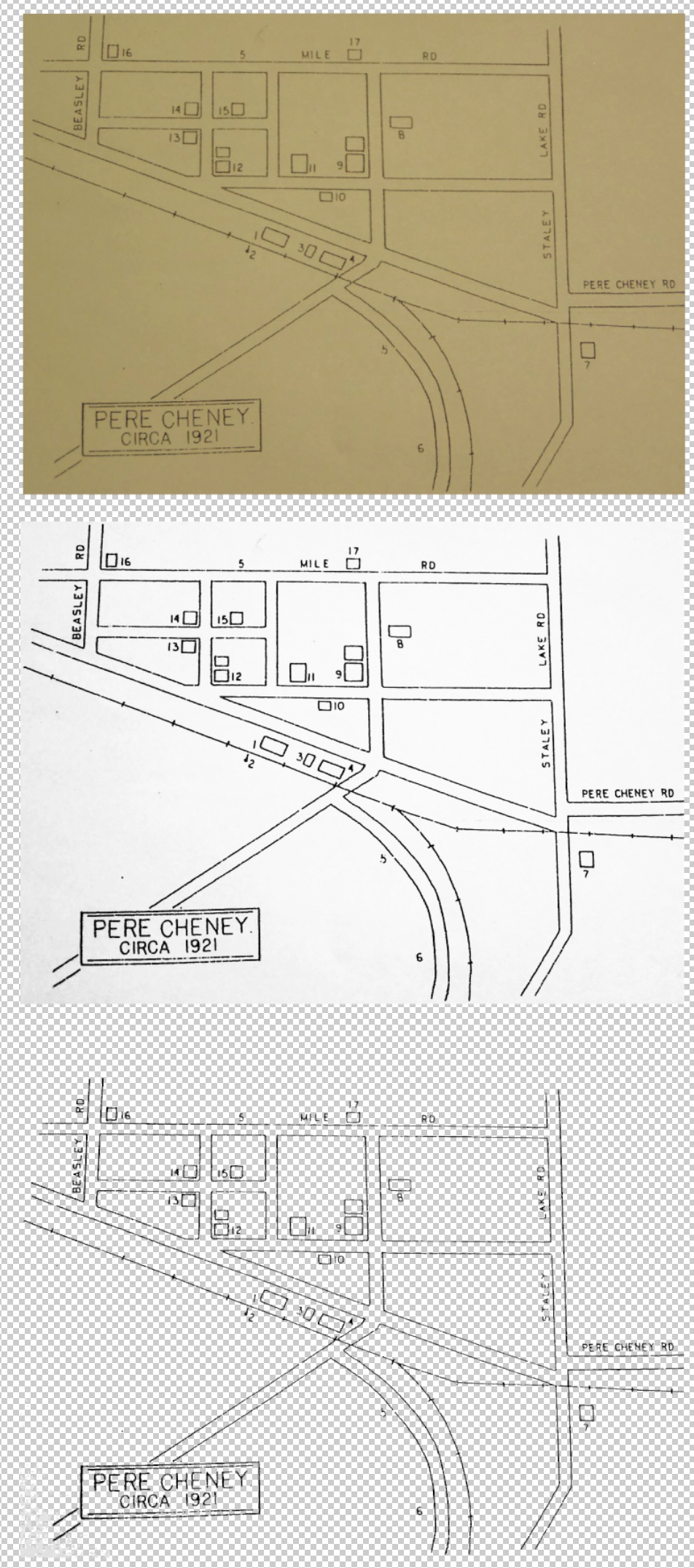
The top map is the old paper copy. Middle is changed to B&W, plus high contrast. The bottom map is a "see-through" transparency with all the white, "selected & deleted"
A Real Ghost Town, Real Mapping Results
By now you’ve spotted some interesting sites on one or more old maps. And rather than trying to pinpoint a bunch of sites, on different maps, it’s best to pick one type of site on one old map to become familiar with the following steps. With map examples on the left, we will be using an actual ghost town from the late 1800’s that suffered repeated misfortune.
Using some kind of image software is part of the process, but don’t fret. You don’t need high-end software like Photoshop (although it works great for overlays). Do a online search for “graphic software, layers, transparency” that is compatible with your computer. Some are free, lots are affordable (Procreate $13). Don’t worry about the learning curve, all of the image apps have online tutorials and videos on how to do a few of the simple steps we’ll cover. So using a graphic app, let’s start with one of your older maps.
Change it to black & white, then increase contrast (you may have to contrast more than once and adjust brightness)
If the lines are unclear, add a “sharpen” feature of filter if your app has that option.
Save the map as a PNG file if you have that option, then name it GTown 1 BW (Avoid saving changes to your original map image file)
Depending on the scale of your map, select a “workable area” that encompasses one or two prospect sites… maybe a two-to-four square mile area.
Delete the surrounding area of the map (crop option). Change the remaining image size to 1500 pixels wide and 300 ppi (pixels per inch) then save it again (PNG) with a new name such as…GTown 1 Area
If your image app can select and delete (remove) the white areas on the map, delete all the white. (use a selection tool in the app to select all the white to delete).
What your left with is a transparent overlay of your area of interest with only the dark lines of the map remaining. Save it again as a PNG file format to preserve the transparency, and name it, GTown 1 Trans. This will be used in making “overlays” to pinpoint the locations of past structures in what is now a 100 year old forest.
Good job. Now you’re ready to reveal more about your prospect sites by overlaying the transparent PNG format of the old map with one of the current web-based maps shown below… or LiDAR that we will cover in the next section.
Modern Aerial Maps
Detailed map resoution can often make a difference on the exact location of your site... especially when overlaying historic maps with LiDAR in the next section.
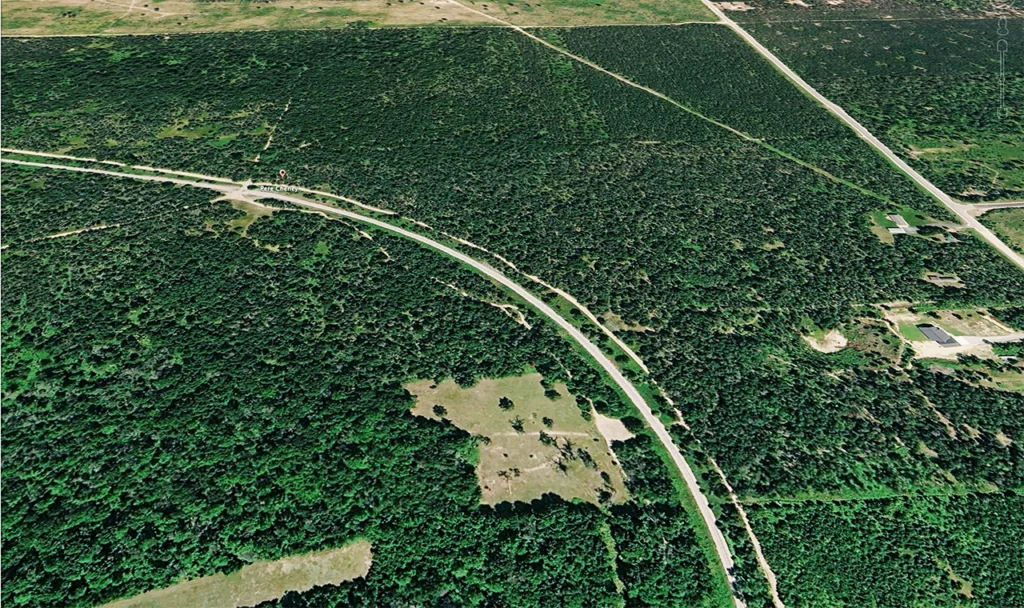
From 1878 to 1896, two plagues of diptheria ravaged the town and the population dropped from 1500 to only 55 people. Today, only a quiet forest and cemetary remain. Fly-in Google Earth Pro view.
Apple Maps, Google Maps & Google Earth Pro
To “layer” (or overlay) and scale-adjust your historic map transparency over a modern map image, you’ll need a “satellite view” from one of the map apps on your computer such as Apple Maps, or Google Maps online, or the Google Earth Proapp.
Just about any modern online mapping or app will show a pretty decent image of your prospect site on your computer screen. Once you’ve selected the “satellite” layer and zoomed in enough to get detail of your prospect site, you want to “screen capture” a PNG image of the map.
One challenge however is being able to zoom in close enough to see your prospect site and have the map on your computer screen retain detailed resolution. As you’ll see, not all maps are created equal.
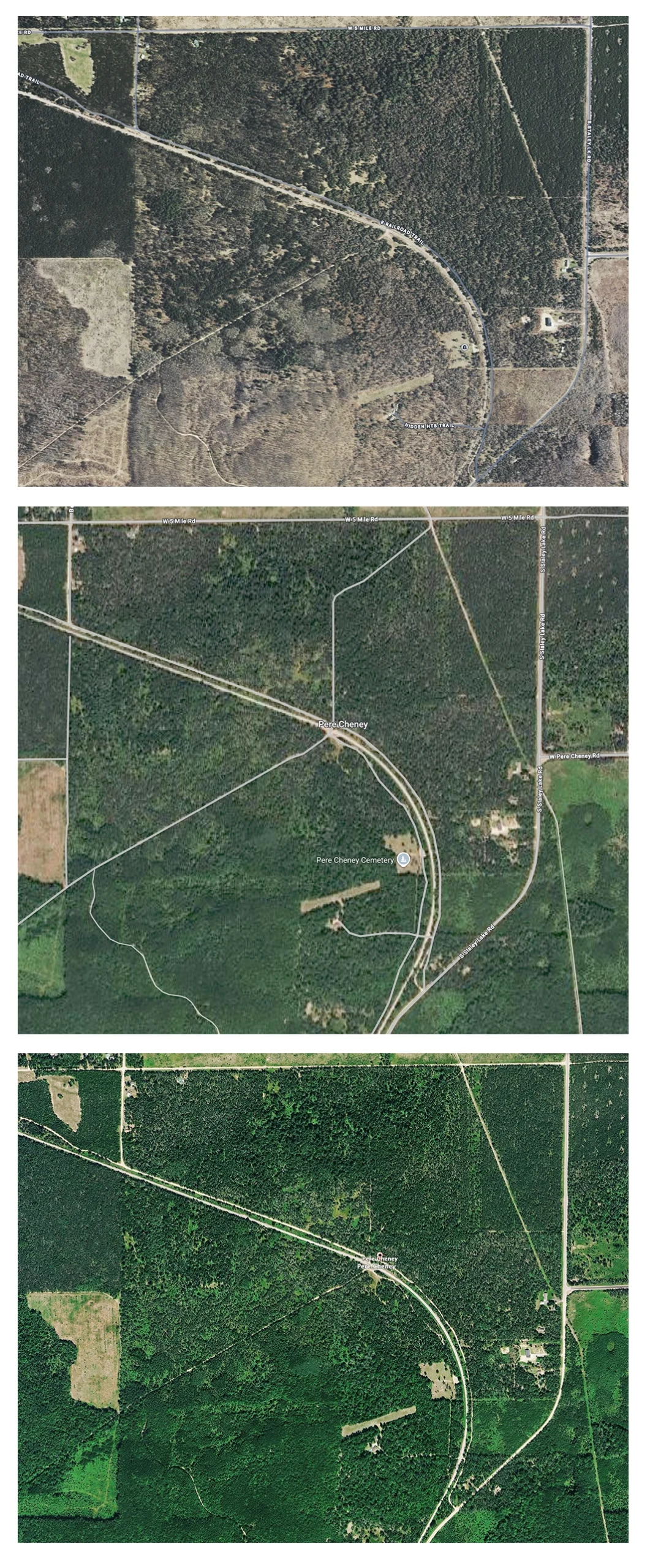
For instance, the three maps to the left were all “screen grabs” of “satellite views” on a high-resolution computer monitor (5120×2880 Retina) and saved as PNGs (avoid saving as JPEGs as that can blur details).
The top two maps are screen captures from Google and Apple Maps. The bottom one is the same image area from Google Earth Pro. Though it may be hard to distinguish at this size, the full screen image from Google Earth Pro allows us to actually see the detail and position of individual trees and other features.
That’s one of about a dozen good reasons we prefer to use Google Earth Pro in mapping and pinpointing prime sites in satellite view. There’s so much you can do with the app, we encourage you to take a moment to preview all of the features of Google Earth Pro that can enhance and refine your treasure maps. In fact, as the image above shows, the app will allow you to “fly around” your site from different angles and directions. Plus, it’s free.
Overlay Your Old Map and Satellite Map
Things are about to get exciting as we now “overlay” and scale-adjust (match the size) of our old map on top of the satellite view map… using your image software or app. The following steps are pretty simple:
Take the time to carefully scale-adjust the size of your old map transparency on top of your satellite view. Be sure that you adjust the size without distorting in one direction.
If needed, slightly rotate the old map transparency to properly align with the “geographically correct” (N-S-E-W) features (such as roads) on the satellite map.
IF the black map lines of your old map are difficult to see on top of the satellite view, use your image app to change the color of the lines to red or yellow to make them stand out.(may need to change the “mode” of your B&W map image to “RGB”.
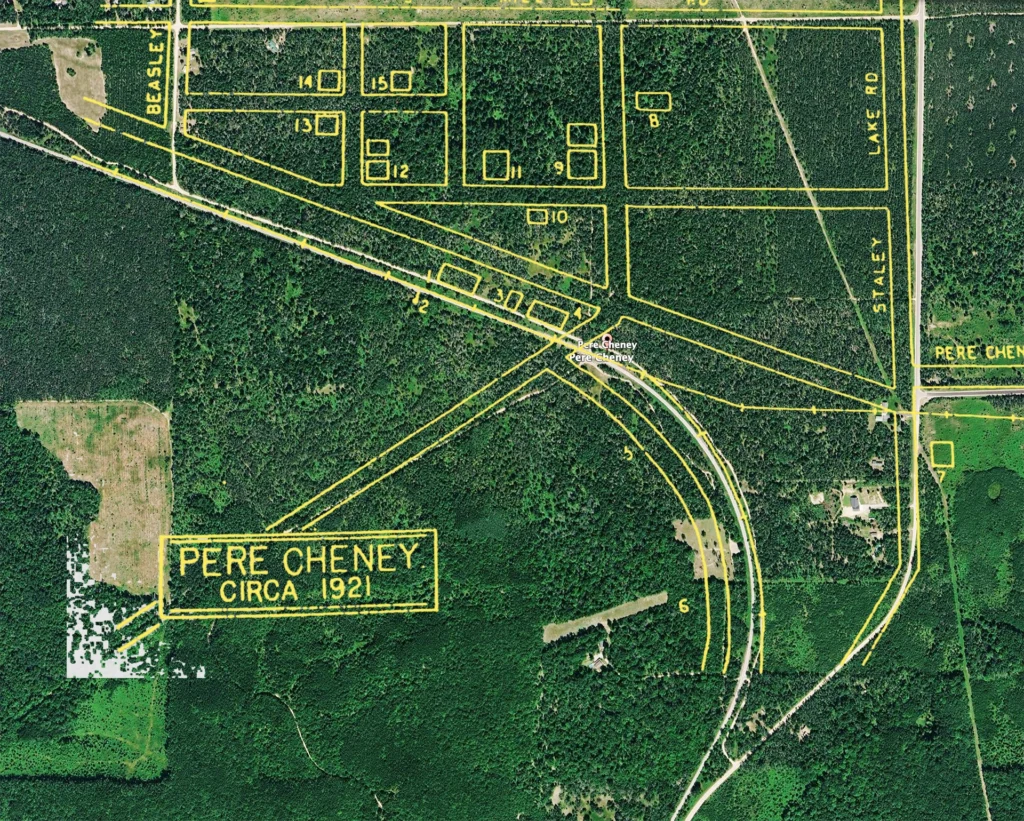
Below is the resulting map using our real ghost town example with the lines of the old map converted to bright yellow. You may notice that a number of features don’t match or align exactly. That’s common for old plat or hand-drawn maps 100 to 200 years old. But this map at least gets us in “the ball park” on where to detect relative to modern features.
However, we can really zero in on the prime building sites and others we might not be aware of by using the incredible power to be able to see through the forest and detailed resolution of of the “bare ground” using LiDAR in the next section.